Your download is starting.
Thanks for trying FlyLap. The installer should start downloading on its own in a moment. While it does, here's how to get it installed, load a reference lap, and put the overlays on track.
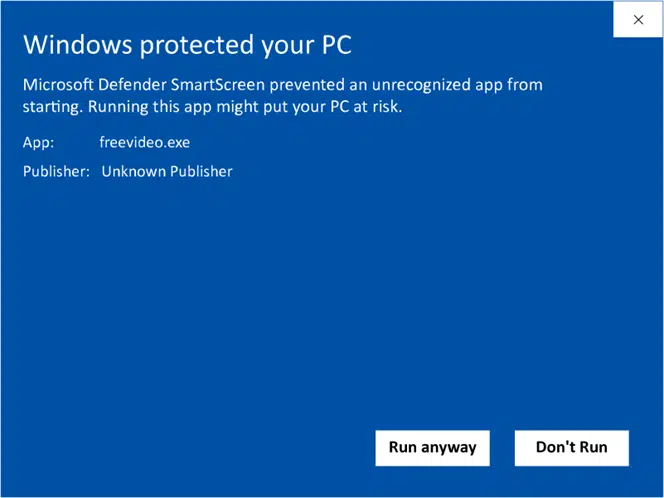
Running the installer may show a blue "Windows protected your PC" screen. That's expected and harmless. Here's why, and how to get past it ↓
Run the installer. No admin needed.
Run the installer
Double-click the downloaded FlyLap installer and follow the prompts. It installs just for you, so there's no admin password or UAC prompt. The whole thing takes a few seconds.
Launch FlyLap
Open FlyLap from the Start menu, or the desktop shortcut if you kept it. The control window opens; from there you place the overlays and pick your reference. iRacing can be running or not.
Go on track
Join a session. The overlays sit on top of iRacing and update live as you drive. Use borderless / windowed mode so they stay visible.
Everything stays on your machine. Nothing is sent anywhere unless you turn on the optional AI Coach and add your own key.
Updating later is just running the newer installer over the top; it keeps your settings, references and laps. Uninstall any time from Settings → Apps, and your data is left in place.
Windows may warn you. That's normal.
When you run the FlyLap installer, Windows may show a blue "Windows protected your PC" screen from Microsoft Defender SmartScreen. It looks alarming, but it's not a virus alert. It only means Windows doesn't recognise the installer yet.
- Why it shows up. SmartScreen flags any program that isn't yet downloaded by lots of people or stamped with a paid "code-signing" certificate. A brand-new installer from a small developer trips it automatically.
- Why FlyLap isn't signed yet. A signing certificate costs a few hundred € every year, and even then Windows only starts trusting you once enough people have run the app. FlyLap is a free, one-person beta, so for now that money goes into building the app, not paperwork. It'll get signed as the project grows.
- Why it's safe. FlyLap runs entirely on your own machine and is built on the open-source rah-iracing-overlay project. The installer only copies files into your own user folder, with no admin rights and no system-wide changes. Nothing leaves your PC unless you opt into the AI Coach with your own key.
- How to run it. Click More info, then Run anyway (see right), and the installer continues normally. Because FlyLap is then properly installed, launching it from the Start menu never trips the warning again.
Still unsure? You're welcome to scan the installer yourself or email me. I'm happy to talk through it.
Export a reference from Garage 61.
FlyLap compares your driving against a reference lap. The easiest source is a free Garage 61 CSV: a fast lap from someone in your car and track, exported in a couple of clicks.
- Open garage61.net and sign in (it's free, and connects to your iRacing data).
- Find a reference lap in your car + track combo: a fast clean lap you want to chase.
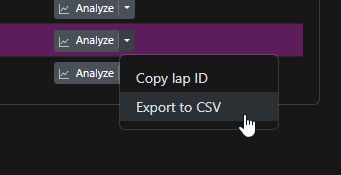
- Open the lap list, click the ▾ dropdown next to Analyze, and choose Export to CSV (see right).
- Back in FlyLap, open the session bar and load that CSV as your reference. Every overlay reads from it.
Four tools. Turn on what you want.
Telemetry Compare
The main overlay. It stacks every channel of your current lap against the reference (speed, brake pressure, throttle, steering, gear, RPM, and lateral / longitudinal G), with a live sector delta so you see exactly where the time goes.
How Enable it in the control window, then open its settings to pick which channels show, trace heights, and the distance zoom.
AI Coach · optional
Takes your best lap plus the reference and returns a structured report: a track map coloured by where you lose or gain time, systemic findings, and per-corner diagnoses. It's bring-your-own-key: requests go from your machine straight to OpenRouter.
How Paste your OpenRouter key into the AI Coach settings, then click Analyze after a lap. You pay OpenRouter directly for what you use.
Next Corner Brief
An in-cockpit heads-up. A few hundred metres before each flagged corner it shows your brake point, target apex speed, gear, and the one thing the AI Coach wants you to fix there. It clears once you turn in, so your hands stay on the wheel.
How Runs off the AI Coach prescription. Enable the overlay after generating a report.
Input Telemetry
Throttle, brake and clutch bars plus a steering-wheel mirror that tracks your real inputs. Inherited from rah-iracing-overlay, the project FlyLap is built on.
How Toggle it on and drag it where you like; position, scale and opacity are configurable.
Drag any overlay to reposition it, and lock the layout when you're happy. Settings persist between sessions.